Pages

Showing posts with label Azure. Show all posts

Sunday, March 2, 2014

Setup Azure cloud on Windows Server

Service Bus is Azure Cloud solution, but it can be installed on your own hardware which must run Windows Server 2012.

Here are the links I think you need:
Installations and configuration instructions: http://msdn.microsoft.com/en-us/library/dn441394.aspx

the WebPI folder download folder is %LocalAppData%\Microsoft\Web Platform Installer\installers. You can get the WebPI installation file there.

the service bus connection string can be retrieved by using Get-SBClientConfiguration. Please make sure you import the certificate from the server to your local computer. Make sure use Get-SBAuthorizationRule to get the connection string with shared key.

Sunday, February 3, 2013

Hadoop Day 3

I got my first map/reduce job running on the HDInsight Services For Windows. The material provided by HDInsight team is very good. :-)

The Hadoop gives a new way to store and process data. We generate huge amount of data every day and the data schema changes constantly. Every times we design a database, we assume the data does not change that often, but this is not true. The possible solution is to dump all the data with low cost. If the portion of data suddenly becomes "valuable", a HIVE external table can be created and give a schema to these data. By using the ODBC driver, the data can be copied to SQL Server which is a high cost solution storage data.  Traditional SQL Server will not be replaced by Hadoop,  it only serves for the "valuable" data. For some "useless" data, let them stay in Hadoop.

I can't publicly discuss or blog the HDInsight feature right now. So this post is to summarize the public materials.

Personally I am more interested in finding a good solution to store the data and later process it as fast as possible. I know Hadoop is ready to for "big data", so I am more interested in

1. How to link with other technologies, such as SQL server and SQL Azure
2. Move data between different data storage
3. perform my own map/reduce work

The article about SSIS catches my eye. I covers question 1 and 2. The ASV protocol mentioned in the article is the way to access Azure blob from Hadoop. If you link to my previous post about Azure blob, you can tell where that post is from. The HIVE can point to a ASV folder by using the Create External Table statement (in section 8.3). You might want to use this link to check all HIVE data types.

Once the data is organized as a table, it can be accessed by using HIVE ODBC. The ODBC enables all kinds of connections and our existing tools and skills are connected. You can NOT write data by using ODBC.

The map/reduce program is very simple, it is basically a clone of C# sample. The only problem I found is debug. The execution log from UI is not that helpful. My trick is to export debug information to the output file. Once the algorithm is correct, the debug information can be eliminated.

Saturday, February 2, 2013

Hadoop Big Data - Day2

Hadoop does open a door to so many possibilities. This blog is to store a local file to Azure blob storage. I will use Azure blob to host the data. Maybe I should call it "garbage can" as it can host any data.. :-D

Anyway, the following is the code to create a blob and create folder in the blob. The code will upload a text file to Data2 folder in the logdata1 container in the Azure blob.

 class Program  
   {  
     static void Main(string[] args)  
     {  
       CloudStorageAccount storageAccount = CloudStorageAccount.Parse("DefaultEndpointsProtocol=https;AccountName=<account name>;AccountKey=<account key>");  
       var client = storageAccount.CreateCloudBlobClient();  
       var container = client.GetContainerReference("logdata1");  
       container.CreateIfNotExists();  
       var fn = "Data2/TextFile1.txt";  
       var blob = container.GetBlockBlobReference(fn);  
       //upload file to container  
       using (var fileStream = System.IO.File.OpenRead("TextFile1.txt"))  
       {  
         blob.UploadFromStream(fileStream);  
       }  
       //list items in the container  
       var blobs = container.ListBlobs();  
       foreach (var b in blobs)  
       {  
         Console.WriteLine(b);  
       }  
     }  
   }  

Sunday, December 16, 2012

Azure Database Full

I blow up the 1G web-version database. After I delete, I still cannot insert record. :-(

After check the space used by using


select sum(reserved_page_count) * 8.0 / 1024 
from sys.dm_db_partition_stats

I find the space is still occupied. After run the rebuild index: alter index all on myTable rebuild, the space is reclaimed.


Sunday, December 2, 2012

F# Computational Expression Sample - File System + XML

Although I am not a PowerShell fan, I do like one feature of PowerShell. You can easily go from file system to registry. PowerShell treat file system and registry are same thing. I am afraid I have to face some Azure Virtual Machine management tasks in the future and I need to prepare in advance.

The following Computational Expression (CE) is a way to design an embedded language like PowerShell. I do not want to risk my computer's registry so I choose the File system and XML file. If you use cd "my path", it goes to either folder, file, or XML file's node or attribute.

the file system is like


and the XML file is


 // Learn more about F# at http://fsharp.net  
 // See the 'F# Tutorial' project for more help.  
 open System  
 open System  
 open System.Xml.Linq  
 type UnifiedType =   
   | Directory of string  
   | XMLFile of string  
   | Node of XElement * UnifiedType  
   | Attribute of string * XAttribute * UnifiedType  
 let rec getElement currentType (path:string list) =   
   match path with  
   | [] ->   
     currentType  
   | head::tail ->  
     let node =   
       match currentType with  
       | Directory(dir) ->   
         let dirs = System.IO.Directory.GetDirectories(dir)  
         match dirs |> Seq.tryFind (fun n -> n.EndsWith head) with  
         | Some n -> Directory(System.IO.Path.Combine(n))  
         | _ ->   
           let files = System.IO.Directory.GetFiles(dir, "*.xml")  
           match files |> Seq.tryFind (fun file ->   
                           String.Compare(System.IO.Path.GetFileName(file), head, true)=0) with  
           | Some n -> XMLFile(n)  
           | _ -> failwithf "cannot find %s" dir       
       | XMLFile (name) ->  
         let doc = XDocument.Load(name)  
         match (doc.Descendants()) |> Seq.tryFind (fun n -> n.Name.LocalName=head) with  
         | Some n -> Node(n, currentType)  
         | _ -> failwithf "cannot find %s" name    
       | Node(node, fn) ->  
         match (node.Descendants()) |> Seq.tryFind (fun n -> n.Name.LocalName=head) with  
         | Some n -> Node(n, fn)  
         | _ ->   
           match (node.Attributes()) |> Seq.tryFind(fun n -> n.Name.LocalName=head) with  
           | Some n -> Attribute(n.Name.LocalName, n, fn)  
           | _ -> failwithf "cannot find %s" node.Name.LocalName    
       | Attribute(name, value, fn) ->   
         failwithf "cannot find %s" name  
     getElement node tail  
 let setValue point (v:string) =   
   match point with  
   | Attribute (name, value, XMLFile(fn)) ->   
     value.Value <- v  
     value.Document.Save(fn)  
   | _ -> ()  
 type ExtendedFileSystem(startPoint:UnifiedType) =   
   member this.Yield( () ) = startPoint  
   [<CustomOperation("cd")>]  
   member this.GoDown(point:UnifiedType, id:string) =   
     getElement point [id]  
   [<CustomOperation("set")>]  
   member this.Set(point:UnifiedType, v:string) =   
     setValue point v  
     point  
   member this.Run(point:UnifiedType) =   
     fun () -> point  
 let fileSystem = ExtendedFileSystem(Directory(@".\"))  
 let fs =   
   fileSystem {  
     cd "Data"  
     cd "Xml"  
     cd "XmlFile1.xml"  
     cd "Xml"  
     cd "Data"  
     cd "A"  
     set "17" }  
 printfn "%A" ( fs() )  
 ignore <| System.Console.ReadKey()  

Saturday, December 1, 2012

My First SSIS + Azure SQL Task

I need to do a task transferring data from SQL Server to Azure cloud. And this is really a good opportunity to refresh my SQL skill. One of my co-workers Haitao, who is really expert in SQL, demonstrates the SSIS. I love the way it processes data.

The core of the task is to transfer the data from SQL to SQL Azure. So the first task is to find the data flow task. I am a visual person, the colorful icon make it stands up and very easy to find out. Two yellow dots with a green arrow. :-)


Once you double click the Data Flow task on the design surface. You have to provide source and target. I had trouble using ADO.net when I set up the configuration file, so I use the OLE DB tasks whenever it is possible.

I need to create several tasks. Another lesson I learnt is the arrow between tasks are "precedence". If a node's proceeding tasks are all finished, this tasks can start right way. So you might see some tasks are executed simultaneously. 

Variable is what I I use exchange the statements from one task to the other task(s). I use select count(*) to check the existence of a table and result is put into a variable.


Be very careful, if it is ADO.net, the result uses index. For example, your SQL statement is select count(*) as AA from TableAA. OLE DB allow you use AA in the result set, but ADO.net only accept 0. This costs me 1 hour.. :(

Because the development environment is different from production environment, I have to make a configuration file. The configuration file can be created by right click anywhere on the design surface (not on any tasks). The right-click menu has the "Package configurations..." item. The connection string is what I wanted to put in the configuration file. The wizard does not put the password in the configuration file, so every time I made changes to the configuration file I had to manually add the password in the connection string.

After I successfully put the connection string into the configuration file, I tried to push the limit by dynamically generate SQL statement from the variable stored in the configuration file. The following screen shot should solve the problem pretty easy. 


Overall, I am very happy about the SSIS and its tooling support. Well, my stomach is really empty. I will blog next time.

Friday, November 30, 2012

SQL Azure Statements

I got a project to work on Azure database stuff. I will document the technical pain point(s) for this project and hopefully it help somebody and also as my own reference. (I am human, I do forget. ;-) )

  • create database
    CREATE DATABASE MyDatabase (Edition='web')

  • delete database
    DROP DATABASE MyDatabase

  • alter database name
    ALTER DATABASE MyDatabase MODIFY NAME=NewName

  • create index
    CREATE CLUSTERED INDEX index0
    ON TestTable ( < your column name >  )

  • get used space
    SELECT sum(reserved_page_count) * 8.0 / 1024
    FROM sys.dm_db_partition_stats

  • Check if the table is in database
     SELECT   
      CASE WHEN count(*) > 0 THEN 1 ELSE 0 END AS TableExist  
     FROM  
      sys.tables t  
     JOIN  
      sys.schemas s  
       ON t.schema_id = s.schema_id  
     WHERE  
      s.name = 'dbo' AND t.name = 'TestTable'  
    

    Another version using INFORMATION_SCHEMA
     SELECT   
      CASE WHEN count(*) > 0 THEN 1 ELSE 0 END   
      AS TableExists  
     FROM INFORMATION_SCHEMA.TABLES   
     WHERE TABLE_SCHEMA = 'dbo' AND TABLE_NAME = 'TestTable'  
    

Sunday, October 21, 2012

F# on Algorithms - Reservior sampling

The reservior sampling is something related to processing large amount of data. This algorithm is also related to the shuffle algorithm. Its definition on wiki is here. In this sample, I also want to demonstrate the power of active pattern. The algorithm is trying to get N element from a large data set, the data set is so big and it is not possible to hold it in the memory. Let us treat the big data as a Seq.

the algorithm first try to fill the result set whose size is resultSize. Once successfully get resultSize elements, the rest element is selected randomly based on a uniform distribution from 0 to current. If the generated random number is in the range of [0, resultSize), replace the result set's element with the new element. So the new element has the probability resultSize/currentIndex.

 let rand = System.Random()  
 let (|InReserviorRange|_|) i resultSize =  
   if i < resultSize then  
     Some()  
   else  
     None  
 type ResultList<'a> = System.Collections.Generic.List<'a>  
 let result = ResultList<_>()  
 let reserviorSampling data resultSize =   
   let (|InReserviorRange|_|) i = (|InReserviorRange|_|) i resultSize    
   data  
   |> Seq.iteri (fun index n ->  
           match index with  
           | InReserviorRange->  
             result.Add(n)  
           | _ ->    
             let newIndex = rand.Next(index)             
             match newIndex with  
             | InReserviorRange ->   
               result.[newIndex] <- n  
             | _ -> ())  
 let seq = seq { for i=0 to 100 do yield i }  
 reserviorSampling seq 5  
 result |> Seq.iter (printfn "%A")  

Note: For a real world application, you have to rewrite the random number generator for number bigger than int32's max value.

In this code, I also want to show the power of active pattern. The InReserviorRange is an active pattern. It make sure the i
I had had made some bugs because ignore the ELSE scenario or think ELSE scenario is not necessary. The match + active pattern can prevent this kind of error. The active pattern just another way to define a function, no much extra cost than define a function. And it gives extra check with match and improves the code readability.

The active pattern can also use the higher order function idea, look at the second InReserviorRange pattern, that is the syntax how to define second pattern based on current pattern.

Tuesday, June 12, 2012

F# code snippet + snippet management for Visual Studio 2012 Addon

If you ever use the C# code snippet feature, you will love how it works. When you cannot memorize the syntax or some commonly used code patterns, the little snippet will be your assistance. I decide to use my weekend time to get this working. Our Shanghai team helps us provides about 70 snippets covering basic syntax, query, type provider, cloud, etc. Shanghai team will continue contribute to the public storage. The setup file is available here.

Setup steps
  1. close Visual Studio 2012.
  2. copy the setup zip to your local computer and unzip it
  3. find your Visual Studio 2012 installation path and create folder structure like the following one:
    "C:\Program Files\Microsoft Visual Studio 11.0\FSharp\Snippets\1033\SnippetsIndex.xml"

    Note: if you are not running English version (1033), you need to find the language ID from C# folder.
  4. Run the package file, which can also be found at VS Gallery.
  5. after you go into visual studio, you can perform your first download.
if you decide NOT to sync up with our F# snippet hosted on cloud, skip next section.

Sync up on Cloud (Expired)
This feature is retired, please use the local installation. 


Install Locally
If you decide NOT to sync up with cloud F# snippet. You can download the snippet from the codeplex project. Those snippet files need to be under My Document. You can find the specific path from Code Snippet Manager. See the screen shot below. This post is also specified how to get the snippet to your local computer.


Add your snippet
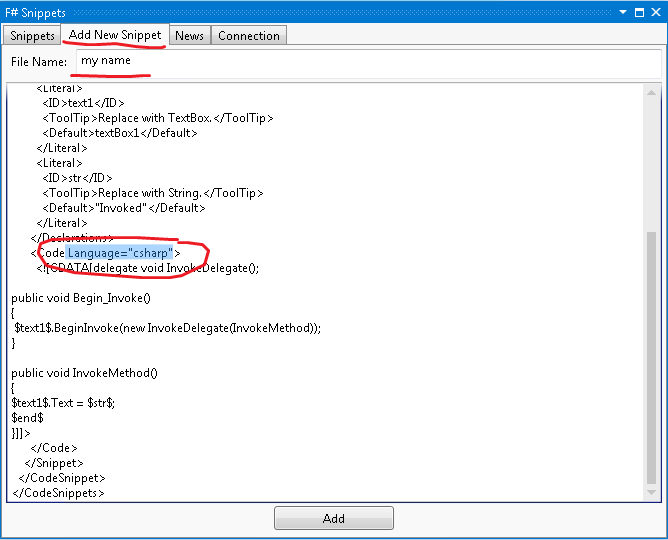
If you have a common use snippet want to share in your department, you need setup your SQL server. The setup script is here. The SQL script will make sure the database setup is recognizable to the snippet binary running inside your Visual Studio 2012. Most likely you will log in to your private storage using "sa" login information. If that is the case, you will see another tab "Add Snippet".  Since the XML file has a language attribute, you can let the program know it is a C# or F# snippet. When you later on download it, it will be insert into different snippet folder.


Add Reference Feature

In addition to C#'s snippet feature, I enable F# snippet to add reference in the F# project. See the screenshot for adding a type provider. It add several DLL's as reference. you can use Ctrl+K,X to bring up the whole list of F# snippets. Some snippets have shortcut and they will show when you type, e.g. class. With many new features put into F# 3.0, I was hoping the code snippet feature can actually help you to write new syntax and further improve your productivity.


The old snippet management has a drawback which cannot be updated easily and is not easy to share the snippet among your colleagues. This snippet tool tries to address these problems by using both a public cloud storage and a private SQL storage.

Sync F# Snippet On Cloud
you need to shoot email to fsbugs@microsoft.com to get login information and unlock the IP address.


If you experience any bugs or need more snippet to help your daily programming work, please leave your comment, or use twitter(ttliu2000) to shoot me message, or use fsbugs@microsoft.com.

Uninstall
if you are going to uninstall it, you can go to Tools->Extension and Updates to uninstall it.


Friday, May 11, 2012

F# on Cloud - 3 More Azure Samples

As leading the Shanghai F# team since Monday, I decide to enhance F#'s presence in the cloud computing. Actually more and more team inside and outside Microsoft use F# in their projects. And I have some information about other big names are using functional programming language as their major cloud programming language. Cannot really mentioned names for some well-known reason.. ;-)

I am excited that  I can be part of this process. Although other companies do not always use F#, but at least the trend is there. The Shanghai team has published three more F# samples. Because they are project (not a single file snippet), you have to download it before you can take a look. One picture is more than 1000 words, so take a look at the pictures below and you will know what you will get.

Hopefully you can learn something from these samples and get to love F# and cloud.. :-)

Please leave comments and requirement either here or on the web site. Please remember that the one of zip file is for Visual Studio 11 Preview. This is required for another several months because of our support policy.


Tuesday, May 1, 2012

Setup Azure Database user permission

When doing the F# Azure stuff, I bump into issues about setting up a Azure database which supposed to be easy, but not!

When I am asked why I want to do this, I really got upset. Just answer my question and stop asking me why! Should I tell you I do not want to share my password? Must be a "won't fix" or "by design" scenario where I should only create one user. Ok, Ok, all my fault.

Anyway, here is the procedure:

I use Visual Studio 11's Server Explorer and then create a "new query" from right-click menu.


  • Create login in the master database
    CREATE LOGIN login0 WITH password='< your password >';
  • create user in the database you want to login, remember to switch out of master database
    CREATE USER user0 FROM LOGIN login0;


  • grant permission to the user

the last step is to set up the permission by choose one of the following


EXEC sp_addrolemember 'db_datareader''user0'
EXEC sp_addrolemember 'db_datawriter'' user0 '
EXEC sp_addrolemember 'db_accessadmin'' user0 '
EXEC sp_addrolemember 'db_backupoperator'' user0 '
EXEC sp_addrolemember 'db_ddladmin'' user0 '
EXEC sp_addrolemember 'db_denydatareader'' user0 '
EXEC sp_addrolemember 'db_denydatawriter'' user0 '
EXEC sp_addrolemember 'db_owner'' user0 '
EXEC sp_addrolemember 'db_securityadmin'' user0 '
remember to use login0 to login.

GRANT EXECUTE ON < stored procedure >  TO user0
deny select on < table or view > to user0