Pages

Showing posts with label Visual Studio. Show all posts

Saturday, December 8, 2018

Automation with NodeJS-Puppeteer & Visual Studio Code

I saw many attempts to automate the processing using commercial software. However, I do not see this is necessary if this task is not that huge. When more and more application is moving to the web-based. Automation of the Chrome browser will automate most of the scenarios. Therefore, I feel 90% of those cases won't need to pay and still get the job done.

First, we need to set up IDE. There are three files needs to be updated and placed in the place. Please make sure you put launch.json and tasks.json are under .vscode folder. 

  • launch.json: it is used to launch the application with predefined tasks such as Typescript build. 
  • tsconfig.json is to used to build the application using Puppeteer
  • tasks.json is to define the Typescript build process

The content of these three files
  • launch.json

1
 2
 3
 4
 5
 6
 7
 8
 9
10
11
12
13
14
15
16
17
18
19
{
    // Use IntelliSense to learn about possible attributes.
    // Hover to view descriptions of existing attributes.
    // For more information, visit: https://go.microsoft.com/fwlink/?linkid=830387
    "version": "0.2.0",
    "configurations": [
        {
            "type": "node",
            "request": "launch",
            "name": "Launch Program",
            "sourceMaps": true,
            "preLaunchTask": "TSC",
            "program": "${workspaceFolder}/app.ts",
            "outFiles": [
                "${workspaceFolder}/**/*.js"
            ]
        }
    ]
}'


  • tasks.json

1
 2
 3
 4
 5
 6
 7
 8
 9
10
11
12
13
14
15
16
17
18
19
{
    // See https://go.microsoft.com/fwlink/?LinkId=733558
    // for the documentation about the tasks.json format
    "version": "2.0.0",
    "tasks": [
        {
            "label": "TSC",
            "type": "typescript",
            "tsconfig": "tsconfig.json",
            "problemMatcher": [
                "$tsc"
            ],
            "group": {
                "kind": "build",
                "isDefault": true
            }
        }
    ]
}


  • tsconfig.json


1
 2
 3
 4
 5
 6
 7
 8
 9
10
11
12
{
    "compilerOptions": {
        "target": "es5",
        "module": "commonjs",        
        "lib": ["es2015", "dom"],
        "sourceMap": true
    },
    "include": [
        "src",
        "node_modules/@types/puppeteer/index.d.ts"
      ]
}


The node_modules folder is created from the npm command provided by the NodeJS framework. The command to run is listed the following. The first line is to install TypeScript compiler which is not installed by default with VS Code. The second line is to install Puppeteer. The last line is to install the library for Typescript to work with Puppeteer.


1
2
3
npm i -g typescript
npm i --save puppeteer
npm i --save-dev @types/puppeteer

The last file is the Puppeteer file:


1
 2
 3
 4
 5
 6
 7
 8
 9
10
import * as puppeteer from 'puppeteer'
 
(async () => {
  const browser = await puppeteer.launch();
  const page = await browser.newPage();
  await page.goto('http://www.google.com');
  await page.screenshot({path: 'example.png'});
 
  await browser.close();
})();


Wednesday, February 12, 2014

F# Code Snippet Updated

I updated the F# code snippet addon for Visual Studio 2013. I will upload the source code to  once the source code is located. I really need to clean up the source code folder. There is no recompile is needed. The root cause for previous addon does not work on VS2013 is because this. The fix is simple, 


  1. download the code snippet vsix file
  2. rename it to .zip file because it is a zip file
  3. find the vsixmanifest file
  4. change InstallationTarget to


Sunday, January 20, 2013

Fakes Framework Replace Function Implementation

Visual Studio 2012 introduces Fakes Framework. Currently I need to find a testing framework and Fakes is one of my choice. I cannot find any good tutorial, hopefully this one can give a quick start.

First the C# code for testing is:

 public interface IStock  
   {  
     int F();  
     int F1(int i);  
   }  
   public class Stock : IStock  
   {  
     public int F()  
     {  
       return 1;  
     }  
     public int F1(int i)  
     {  
       return i + 1;  
     }  
   }  

After creating the Test Project from Visual Studio, you can replace the F1 implementation with a new function.

 using (var context = ShimsContext.Create())  
       {  
         System.Fakes.ShimDateTime.NowGet = () => new DateTime();  
         var dt = DateTime.Now;  
         var shim = new ClassLibrary1.Fakes.ShimStock();  
         shim.F = () => 7;  
         var x = shim.Instance.F(); //x is 7 instead of 1  
       }  

Tuesday, September 11, 2012

Math (Unicode) symbol add-on for F#

During my San Francisco trip, Jack asked the math symbol feature. I decide to give it a try and now the first version is ready. The screenshot is shown below. The add-on can be downloaded from Visual Studio gallery.


This add-on only changes the visual of the string and the source code is untouched. So if you open it in a notepad, the code won't contain any math (Unicode) symbol.

The add-on needs a replace file located under "My Document". The sample file is located here. You can download the file and put it under "My Document".

Please leave your comments. :)

Wednesday, August 22, 2012

F# Add Reference Addon

Recently we got a customer request to add reference to FSI. I get this feature working and another feature added. A "Scripts" folder is created which contains several .fsx files. See the screen shot below. These script files are generated to help to load the project references and project. Typically there are only Debug and Release configuration, if there is other configuration, a new set of files are generated. Auto update happens after each build. The content of these file are updated automatically. It can be download it from visual studio gallery.


c:\MyProjects\MyProject\Scripts\load-refs.fsx:

  #r "System.dll”
  #r "System.Xml.dll”
  #r @"c:\MyProjects\OtherProject\bin\Debug\OtherProject.dll”

c:\MyProjects\MyProject\Scripts\load-refs-release.fsx:

  #r "System.dll”
  #r "System.Xml.dll”
  #r @"c:\MyProjects\OtherProject\bin\Release\OtherProject.dll”

c:\MyProjects\MyProject\Scripts\load-proj.fsx:

  #load @"c:\MyProjects\MyProject\Scripts\load-refs.fsx”
  #r @"c:\MyProjects\MyProject\Debug\bin\MyProject.dll”

c:\MyProjects\MyProject\Scripts\load-proj-release.fsx:

  #load @"c:\MyProjects\MyProject\Scripts\load-refs-release.fsx”
  #r @"c:\MyProjects\MyProject\Release\bin\MyProject.dll”


Thursday, July 19, 2012

F# code snippet on codeplex

As we are improving the F# ecosystem, the snippet project is created on codeplex web, so our development progress is visible to everyone. The F# code snippet project hosts the F# snippet file which can be consumed by the F# snippet addon. Feel free to follow and/or leave comments. 


Wednesday, June 13, 2012

Snippet file updated

Thanks for the review and feedback, the snippet file is updated according to the feedback. We will keep updating these snippets. The snippet file will be updated on the blog.

currently the snippets are from two sources:

  1. the snippets generate the basic F# structures, such as for, while, if, etc
  2. convert C# snippets to F#.
We try to control the snippet with shortcuts minimum and meanwhile continue to contribute to the one without shortcut.


If you are using code snippets and have some suggestion on some new snippets you like or dislike.  Please let us know.


How to write your F# snippet

If you are going to write your own F# code snippet to work with the F# snippet add-on, it is pretty simple. The snippet file format is exactly like the C# snippet file except the language tag is "fsharp". Please note the F# snippet support "add reference". If you copy the existing C# snippet, be careful about the reference part. You do not want to insert a F# tuple and suddenly have Windows.Form.dll inserted into the reference. (I have to confess, I did this several times after copying C# ones. :-( )

This tag is also used to distinguish F# snippet and C# snippet when insert into the database.


Please feel free to setup your snippet database using the script.


F# snippet files v0.8 are here!

along with the published F# code snippet addon for Visual Studio 2012 RC, F# Shanghai team also provides a set of snippets. we have already moved them to open source project on codeplex.


are contributors this package.

you need to copy them to the " C:\Users\ < user name > \Documents\Visual Studio 2012\Code Snippets\Visual F#\My Code Snippets" after you successfully install the snippet addon. Please also check your code snippet manager to make sure fsharp does point to the Visual Studio 2012\Code Snippets folder. Some computers still points to Visual Studio 11\Code Snippets folder.

If you find anything odd, please either shoot me message on twitter (ttliu2000) or fsbugs@microsoft.com


Tuesday, June 12, 2012

F# code snippet + snippet management for Visual Studio 2012 Addon

If you ever use the C# code snippet feature, you will love how it works. When you cannot memorize the syntax or some commonly used code patterns, the little snippet will be your assistance. I decide to use my weekend time to get this working. Our Shanghai team helps us provides about 70 snippets covering basic syntax, query, type provider, cloud, etc. Shanghai team will continue contribute to the public storage. The setup file is available here.

Setup steps
  1. close Visual Studio 2012.
  2. copy the setup zip to your local computer and unzip it
  3. find your Visual Studio 2012 installation path and create folder structure like the following one:
    "C:\Program Files\Microsoft Visual Studio 11.0\FSharp\Snippets\1033\SnippetsIndex.xml"

    Note: if you are not running English version (1033), you need to find the language ID from C# folder.
  4. Run the package file, which can also be found at VS Gallery.
  5. after you go into visual studio, you can perform your first download.
if you decide NOT to sync up with our F# snippet hosted on cloud, skip next section.

Sync up on Cloud (Expired)
This feature is retired, please use the local installation. 


Install Locally
If you decide NOT to sync up with cloud F# snippet. You can download the snippet from the codeplex project. Those snippet files need to be under My Document. You can find the specific path from Code Snippet Manager. See the screen shot below. This post is also specified how to get the snippet to your local computer.


Add your snippet
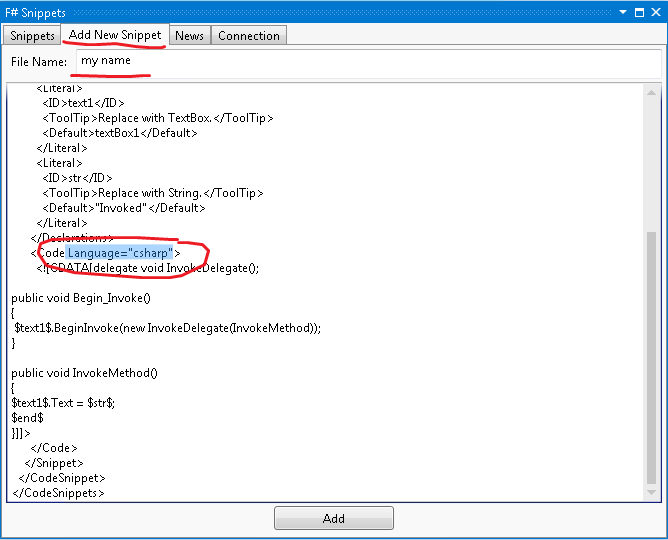
If you have a common use snippet want to share in your department, you need setup your SQL server. The setup script is here. The SQL script will make sure the database setup is recognizable to the snippet binary running inside your Visual Studio 2012. Most likely you will log in to your private storage using "sa" login information. If that is the case, you will see another tab "Add Snippet".  Since the XML file has a language attribute, you can let the program know it is a C# or F# snippet. When you later on download it, it will be insert into different snippet folder.


Add Reference Feature

In addition to C#'s snippet feature, I enable F# snippet to add reference in the F# project. See the screenshot for adding a type provider. It add several DLL's as reference. you can use Ctrl+K,X to bring up the whole list of F# snippets. Some snippets have shortcut and they will show when you type, e.g. class. With many new features put into F# 3.0, I was hoping the code snippet feature can actually help you to write new syntax and further improve your productivity.


The old snippet management has a drawback which cannot be updated easily and is not easy to share the snippet among your colleagues. This snippet tool tries to address these problems by using both a public cloud storage and a private SQL storage.

Sync F# Snippet On Cloud
you need to shoot email to fsbugs@microsoft.com to get login information and unlock the IP address.


If you experience any bugs or need more snippet to help your daily programming work, please leave your comment, or use twitter(ttliu2000) to shoot me message, or use fsbugs@microsoft.com.

Uninstall
if you are going to uninstall it, you can go to Tools->Extension and Updates to uninstall it.


Friday, March 23, 2012

Create Visual Studio 11 Template

Recently I have a task to write a template. The task seems easy but turns out very consuming. It involves little programming, but manual mouse click steps.

Because I cannot find VS SDK 2011, so I have to use VS 2011 SP1 SDK. Follow the following screenshoot, you can create a VSIX project:

This will give us the VSIX project. The content is actually from Visual Studio 11's export feature:

The export template provides a .zip file. Copy this .zip file to the VSIX project. The UI is pretty straightforward, the only problem is the VSIX is only generated for Visual Studio 2010. The way to make the VSIX work for 2010 is to make sure the Visual studio version set to 11.0 in the source.extension.vsixmanifest file. You might have to use notepad to edit the content of the file.

< SupportedProducts >
      < VisualStudio Version="11.0" >

If you ever decide to modify the zip file, please make sure you go to Visual Studio UI remove the content and re-add the content. I have been bitten this badly. :-(